Thank you for taking a few moments to update your email signature!
Please use your PC laptop or PC desktop computer to make this update.
* This signature does not work with iPhone Mac Mail.
You can only use a PC and Gmail to add the signature since using iPhone / MacMail will result in the email signature logo and text formatting being lost or distorted.
After you update your email signature, make sure your Gmail phone app is updated to the latest version. To use your new signature on mobile, the “Mobile Signature” setting should be turned off — this is the default.
If you send a test email and see an old signature, try turning the “Mobile Signature” setting on, then off again to reset it.
Click once to the left of the Elms College logo. Hold and drag down to begin highlighting the entire email signature template:
 Faith • Community Justice • Excellence | First Last | |
“Optional quote here optional quote here optional quote here optional quote here optional quote here optional quote here optional quote here.” — Person | ||
“Slightly smaller font” template:
| Faith • Community Justice • Excellence | First Last | |
“Optional quote here optional quote here optional quote here optional quote here optional quote here optional quote here optional quote here.” — Person | ||
On a Laptop or Desktop Computer: (does not work for Mac Mail on iPhone)
- Select all the content in the email template above
- Copy (Ctrl+C, or Cmd+C).
- In Gmail: ⚙️ Settings → See all settings → Signature.
- Click “Create new”, name it “Elms Signature” and click the “Create” button.
- Click Once into the Signature area, clicking once into the field, and Paste (Ctrl+V, or Cmd+V).
- Update the text with your information. Feel free to add your office location, links to helpful resources and your cell phone number.
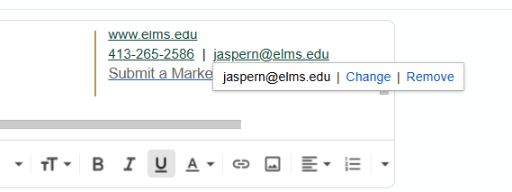
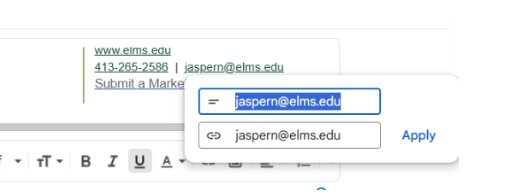
* For all linkables (website links you might want to add, your phone and email address), you have to click the link button and input the info 2 times, once for the visible text, and once of the link. - Under “Signature defaults” set your new ‘Elms Signature’ as default for new AND reply/forward emails.
- Recommended: check the option “Insert signature before quoted text in replies and remove the “–” line that precedes it.”
- Scroll down and click Save Changes.
- Make sure to remove any email signature text from your Vacation auto responder.
- Compose a new email and make sure that things look good to you.
- Test it out on your computer / mobile / tablet.
Watch the how to video
IMPORTANT: Test the PHONE and EMAIL links!
Also IMPORTANT:
VACATION MODE: Make sure you have in gmail:
1) enabled Rich texts in your vacation responder, then
2) pasted your email signature into the vacation auto responder
3) Save
Once your email signature has been updated, please send a email to Lucardic@elms.edu so we can ensure all updates have been completed across campus. Need some help? Contact Nate Jasper at jaspern@elms.edu
Thank you :-)
Troubleshooting Phone / email links
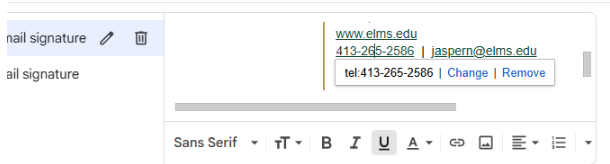
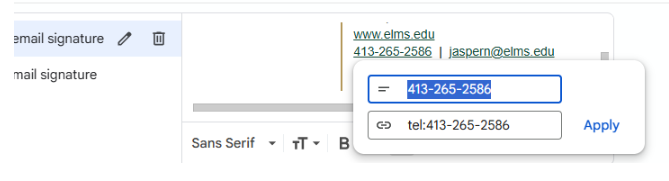
For all linkables (website links you might want to add, your phone and email address), you have to click the link button and input the info 2 times, once for the visible text, and once of the link.
Phone link update:
Click once on the phone link, click change, enter the info, click apply, scroll down and click save.
Email link update:
Click once on the email link and click change, enter the info, click apply, scroll down and click save.